Dev Server
The Developers page is where you expose your qbash work to the outside world. It has three cards:
- Memory MCP Server — connect an external MCP client to a memory folder, to create, search, update, and retrieve that folder's documents from outside qbash.
- Execution MCP Server — make the Tasks you have built callable as tools from an external MCP client.
- API Endpoints — publish any prompt or task as a REST API endpoint with a callable URL.
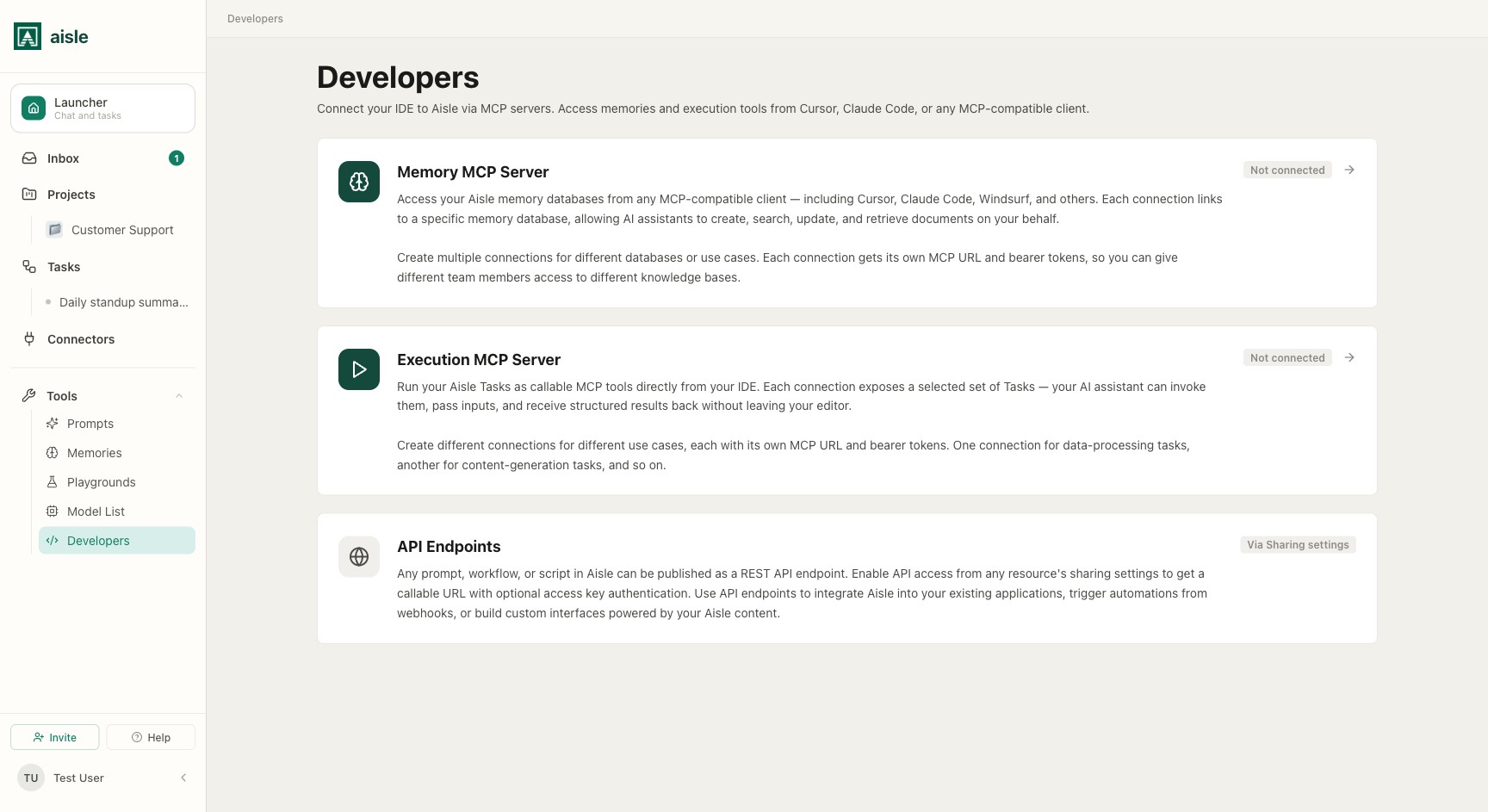
Memory MCP Server
The Memory MCP Server exposes your memory folders to external MCP clients. Each connection targets a specific memory folder and has its own MCP URL and bearer tokens, so a client like Claude Code, Cursor, or ChatGPT can create, search, update, and retrieve that folder's documents from outside qbash.
You create these connections from a folder's own Settings (turn on Enable External MCP Servers), and they are listed here on the Developers page. For the full walkthrough — the operations each connection exposes, the endpoint URL, and how to wire it into a client — see Memories MCP Server.
Execution MCP Server
The Execution MCP Server makes the Tasks you have built callable from external MCP clients — Claude Code, Claude Desktop, ChatGPT, Cursor, or any MCP-compatible tool. Your client calls a task the same way it calls any other tool: it passes the task's inputs, the task runs on qbash's managed runtime, and the output comes back to your client.
In the qbash app you connect and manage it under Developers > Execution MCP Server.
What gets exposed
Each connection exposes a set of Tasks that you choose. Every exposed task becomes one tool:
- The tool is named after the task — lowercased, with spaces and punctuation collapsed to hyphens (for example,
Weekly Account Briefbecomesweekly-account-brief). If two tasks produce the same name, one gets a short suffix so names stay unique. - The tool's description is the task's description.
- The tool's input schema is built from the task's declared inputs. Each input becomes a typed property, carrying its description, and inputs marked required are listed as required on the tool.
Input types map to JSON Schema types as follows:
| Task input type | Tool schema type |
|---|---|
number | number |
boolean | boolean |
list, multi-select | array |
file, json | object |
| everything else (text, credential, memory, …) | string |
Only Tasks you can run are available to expose — tasks shared with you, tasks with organization-wide access, or tasks reachable through a Project you can access. Draft and archived tasks do not appear. See Sharing Tasks for how that access is granted.
Credential inputs are gated: when a task takes a credential input, you can only point it at a credential you are allowed to access.
Alongside your task tools, every connection also exposes two companion tools:
check_task_status— fetch the status and result of a run by itsexecution_id.get_task_logs— stream the log lines a run emitted (the lines the task logged withqbash.log) by itsexecution_id.
The run model
Calling a task tool starts a run. Task runs are asynchronous and can take longer than an MCP client allows for a single tool call — Cursor caps a tool call at around 60 seconds, Claude Desktop at a few minutes, and progress notifications do not reset those limits. To stay within them, a task tool waits inline for a short window (about 10 seconds):
- If the run finishes within that window, the tool returns the task's output directly.
- If it does not, the tool returns an
execution_idand a suggestedpoll_interval_seconds, and the run continues in the background.
When you get an execution_id back, your client uses the companion tools to finish the job:
check_task_statuswith thatexecution_idreturns the final output once the run is done, or the current status (including a count of log lines and the latest line) while it is still running. Poll it every few seconds until it finishes.get_task_logswith thatexecution_idreturns the run'sqbash.loglines. Pass an optionalafter— the number of lines you have already seen — to fetch only newer lines while polling.
A run started this way is a normal task run: it appears in the task's run history and logs like any other trigger. See Versions and logging.
Connecting a client
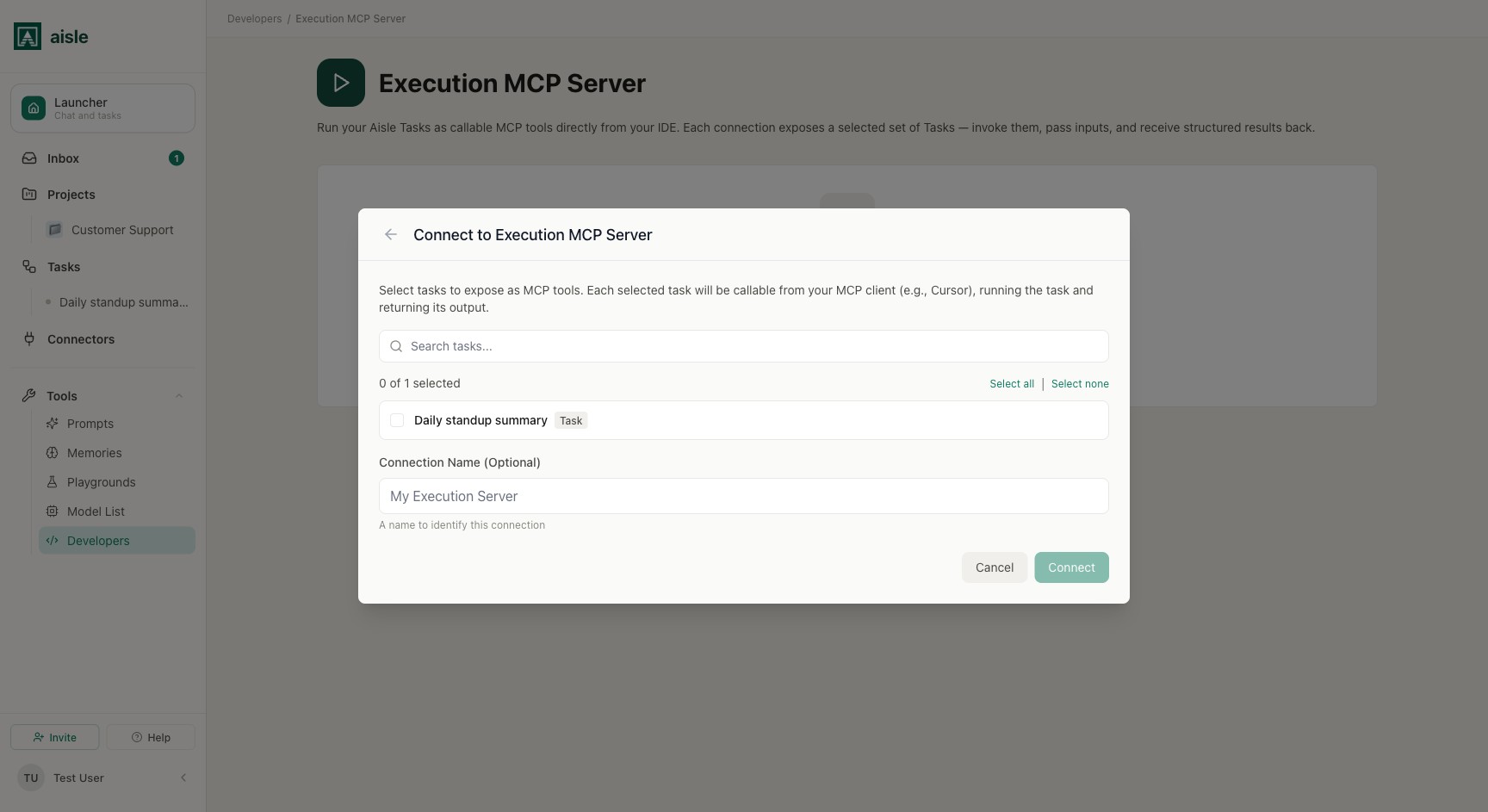
Open Developers > Execution MCP Server and create a connection:
- Click Get Started (or New Connection).
- Select which Tasks to expose. You can search, and select all or none.
- Give the connection a name.
- Click Connect. qbash generates a connection URL and a bearer token.
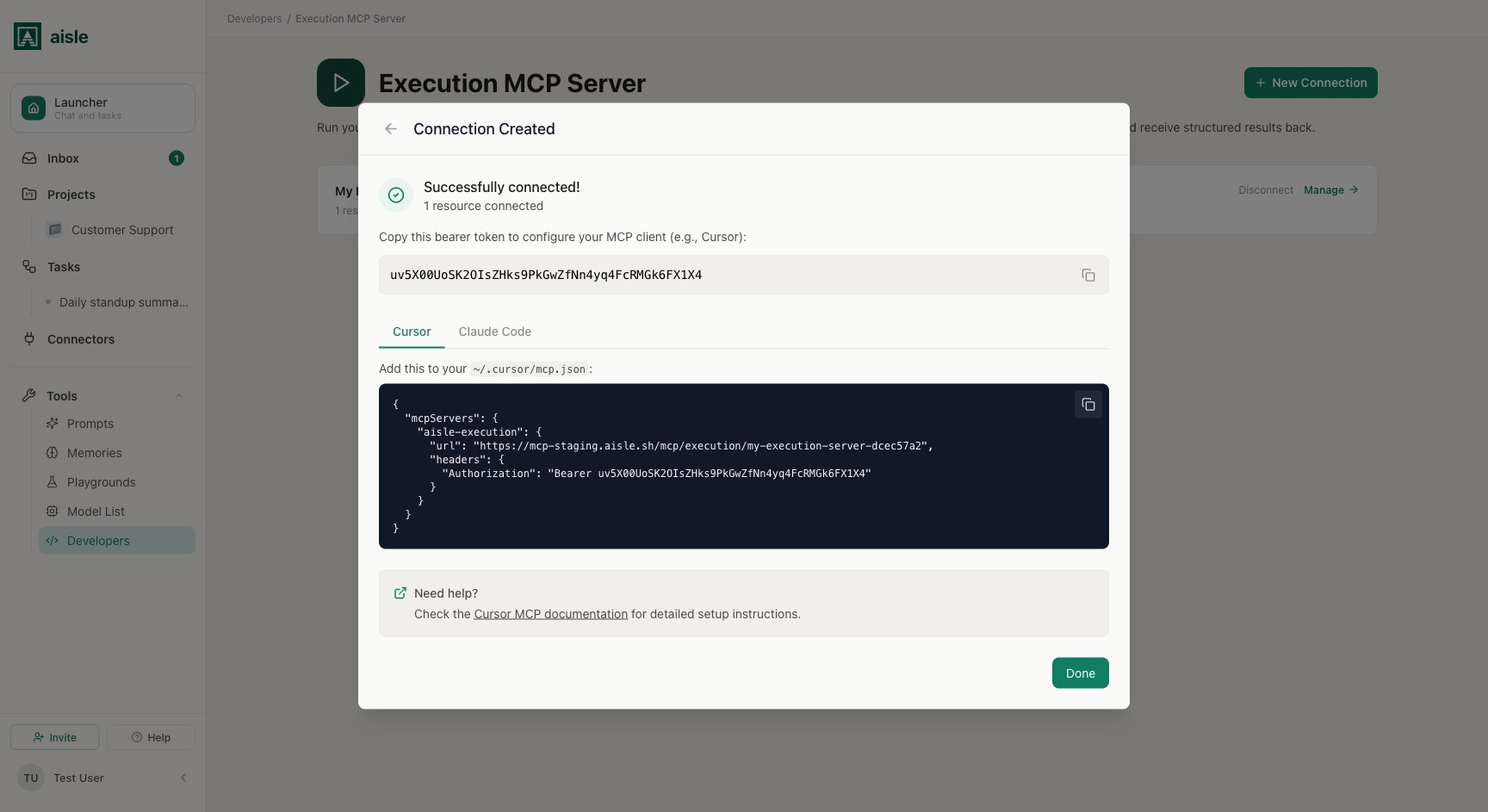
Each connection has its own URL and its own bearer tokens:
<your-execution-mcp-url>
Authorization: Bearer <your-token>
The bearer token is shown once when it is created — copy it then. In your MCP client (for example, Cursor's ~/.cursor/mcp.json):
{
  "mcpServers": {
    "qbash-execution": {
      "url": "<your-execution-mcp-url>",
      "headers": {
        "Authorization": "Bearer <your-token>"
      }
    }
  }
}
For Claude Code, add the same connection from the terminal:
claude mcp add --transport http qbash-execution \
  <your-execution-mcp-url> \
  --header "Authorization: Bearer <your-token>"
The connection's Connection tab shows the exact URL and a copyable config template for Cursor and Claude Code.
Managing a connection
Open a connection to manage it across three tabs:
- Connection — the MCP URL and the config template to paste into your client.
- Resources — the Tasks this connection exposes. Add or remove Tasks here; the change takes effect on the client's next
tools/list. - Tokens — the bearer tokens for this connection. Each team member creates their own token, which lets logs attribute runs to the person who made them. Tokens are shown once, and you can revoke any token at any time — a client using a revoked token immediately loses access.
Disconnecting a connection removes it entirely; any client still using its tokens loses access.
API Endpoints
Any prompt or task can be published as a REST API endpoint, so an external system can call it over HTTP. You turn this on from the resource itself — via its Sharing settings — not from the Developers page; the API Endpoints card simply gathers the prompts and tasks that have an endpoint.
Once published, the endpoint returns a callable URL. Calls can be secured with an access key: when the endpoint is set to require one, requests without a valid key are rejected.
Where to go next
- Tasks — what Tasks are and how to build them.
- Sharing Tasks — how task access is granted, which determines what you can expose here.