Organization Settings
Organization Settings is where admins manage team members, invitations, and shared defaults. Click your name or avatar at the bottom of the left sidebar and select Org Settings. This option is available to admins of the current organization.
The Users and Invites tabs cover team access and invitations. Pins controls shared shortcuts, and Company Settings controls who can invite new members.
AI providers and their API keys are configured separately under Models in the main sidebar. See Model Providers for setup and trial access. Connections to other services live under Connectors; see MCP Connectors.
Pins
Pinned items appear at the top of the chat launcher for everyone in the organization, before personal pins and recently used items. Use them for tasks and tools your team reaches for often.
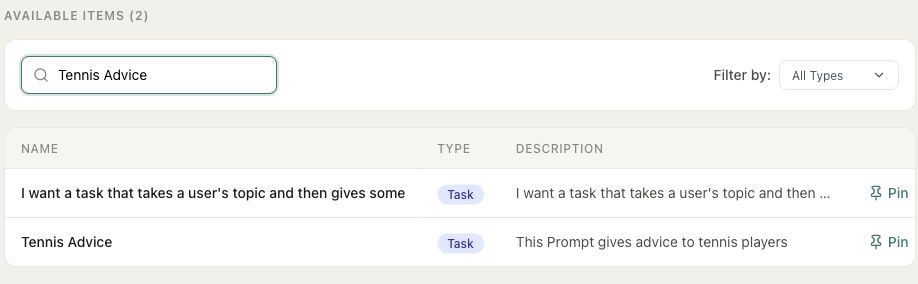
Open Pins, find an item under Available Items, and click Pin. Search or Filter by can help narrow the list. To remove a shared pin, click Unpin beside it under Pinned Items.
Company Settings
The Company Settings tab controls who can invite new members. With Allow all users to invite enabled, any member can send an invitation. Turn it off to limit invitations to admins.
If members can invite, you can also enable Restrict invites to allowed domains. Add at least one domain, such as example.com, to limit the addresses members can invite. Admins can still invite people from any domain.
Click Save Settings to apply changes.