Intro and editor
A task is an AI-enabled Python automation hosted in the cloud by qbash. It can run on a schedule, respond to a trigger, or be called through an API or from chat tools using MCP. See Distribution for these options.
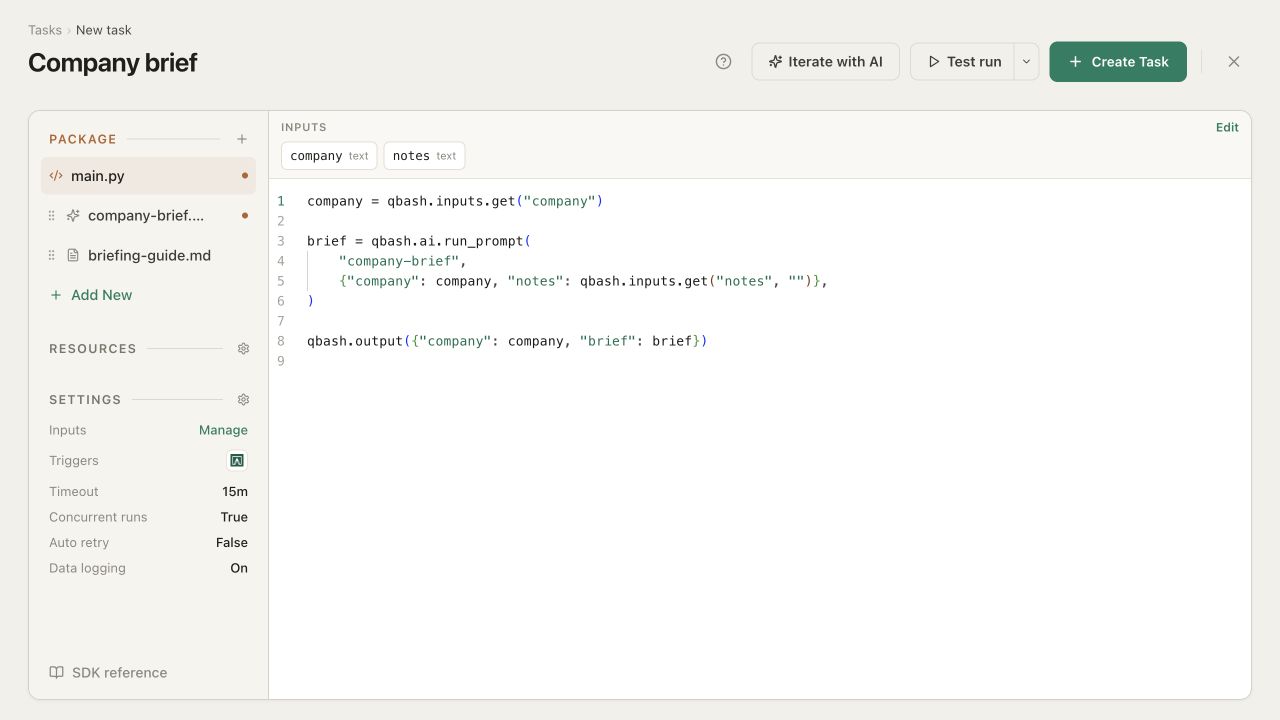
For example, this task passes a company name and some notes to a prompt, then returns a brief:
company = qbash.inputs.get("company")

brief = qbash.ai.run_prompt(
    "company-brief",
    {"company": company, "notes": qbash.inputs.get("notes", "")},
)

qbash.output({"company": company, "brief": brief})
It uses a company-brief prompt, a required company input, and optional notes. Prompts shows the prompt's instructions and settings.
Iterate with AI

Iterate with AI gives you access to the qbash development agent, which builds and edits tasks on your behalf. Describe the automation you want, ask for a change, or give it an error to investigate. It can work on the code, prompts, documents, tests, inputs, and settings. A new task starts on main.py with this pane already open.
Using the editor
The Package list opens files in the main workspace and lists the task's connectors, memory folders, Secrets and linked tasks. Settings sits below it, with Import automation and SDK reference at the foot. The strip above the code shows the task's inputs. Test run asks for their values and opens a console beneath the editor to show what happened.
Task files
Every task starts with main.py. The + menu on Package adds prompts, Markdown files, uploaded files, tests and additional Python scripts, and attaches the task's connectors, memory folders, Secrets and linked tasks. The Package is saved and versioned with the task. Hover a Package row for its ID and a code sample that uses it.
-
main.pyruns when the task is called. It reads inputs, calls services or prompts, and controls what happens next. TheqbashSDK is already available, with completion for its methods and your other Python files. There is nothing to install or initialize. The editor underlines arun_promptcall that passes something the task doesn't have, such as a connector it hasn't attached. It also underlines a Word, Excel or PowerPoint file from the Package passed withoutqbash.files.convert. -
Prompts hold model instructions and settings. Their Abilities and limits section turns on subagents and abilities and sets the limits for a prompt that runs as an agent. They appear as
.promptfiles and are called by their slug. See Prompts. -
Markdown documents keep reference text with the code, such as a
briefing-guide.mddescribing what the brief should cover. Code can read or search them, and a prompt call passes one by its slug:memory=["briefing-guide"]. -
Uploaded files, such as a pricing PDF, are added with Upload file and saved and versioned with the task. Code gets one with
qbash.files.package("pricing.pdf"), and can pass it to a prompt. The development agent and MCP builds can also add a Package file from a public URL. -
tests.pychecks Python functions with mocked platform calls. Testing and debugging explains the built-in test runner and how it differs from an editor Test run. -
Additional Python scripts let you move work out of
main.pyinto separate files. Other scripts and tests can import them as modules.
Inputs
Inputs define the information a task needs at runtime - for example, a company name and optional meeting notes. Required inputs must be supplied wherever the task is run.
Within the task, retrieve an input with qbash.inputs.get(...):
company = qbash.inputs.get("company")
notes = qbash.inputs.get("notes", "")
The second argument is a fallback when an input is absent. Settings → Inputs defines names, types, required fields, and defaults.
Returning a value
To return a value from a task, call qbash.output(value). For example:
qbash.output({"company": company, "brief": brief})
The caller receives this result wherever the task was started. You can return text or other JSON-compatible values.
Call it once, usually at the end of main.py. It sets the result without stopping Python execution; code after it still runs.
Task resources
The Package also holds what the task can work with besides its files: connector accounts, shared memory folders, Secrets and other tasks. Add connector, Add memory folder, Add secret and Add task in the Package + menu each open a full-width view where you attach or detach them. Attached items appear as Package rows. A company brief might need a CRM account for customer details, a memory folder of sales notes, and a separate task that prepares usage figures.
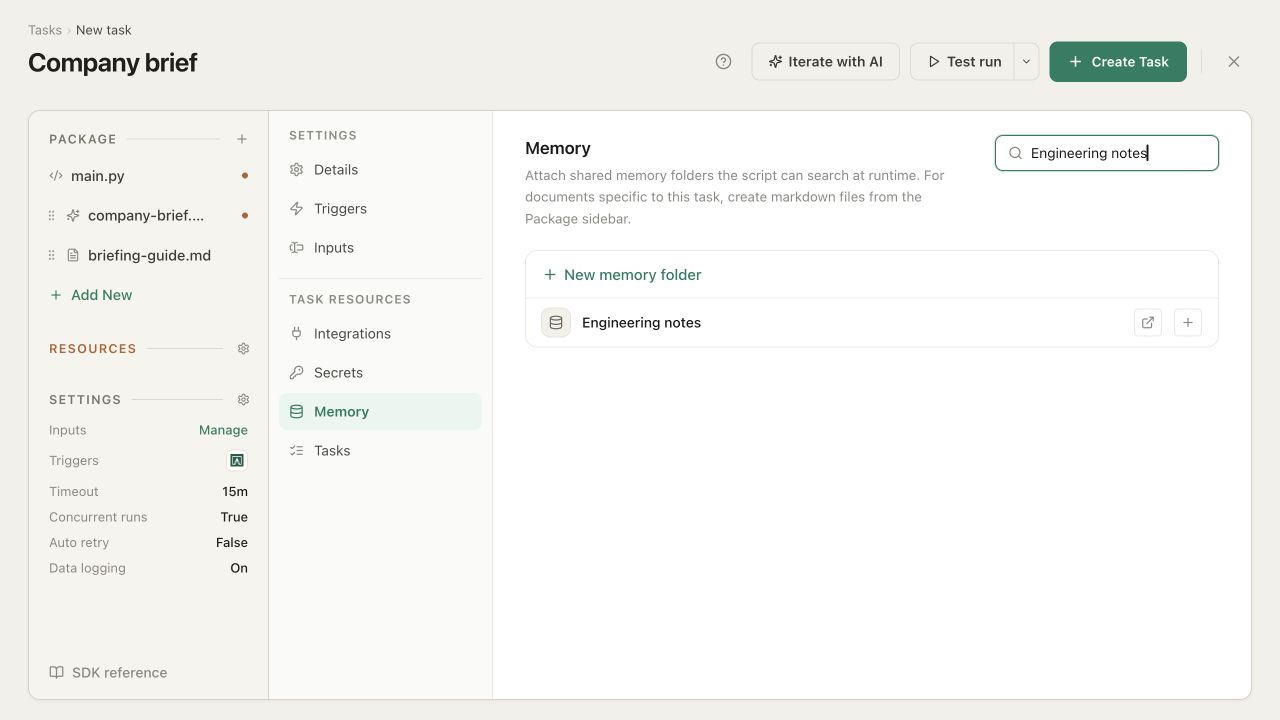
Attaching one makes it available to the task, and the code decides when to use it. Each view flags items your code names that aren't attached yet.
Connectors
Add connector gives the task access to accounts in services such as Pipedrive, Slack, Google Drive, or a database. Select the connection you want it to use, such as the sales team's CRM account rather than a personal one. Manage opens that service's connections when you need to connect or reauthorize an account.
Your code calls the service through qbash.integrations. qbash uses the selected connection, so you do not need to put its login details in the script. The account's permissions still determine which records and actions are available. To let a prompt call the account, pass it in connectors=.
A task can have more than one account of the same service, such as two HubSpot accounts. Each attached account gets a handle on the task. The first account of a provider takes the provider's name (hubspot, active_campaign), a second takes hubspot-2 and a third hubspot-3. A new account takes the lowest free handle, and an account keeps its handle for as long as it is attached. The Add connector view and each Package row show the handle, and hovering a row shows it with a copy button and a code sample. Code picks an account by its handle, such as credential="hubspot-2" on an integration call.
Memory
Add memory folder attaches shared folders the task can read and search, such as sales notes, product documentation, or company policies. You can select an existing folder or create one here. The task can also add or update documents where its access permits. The folder's permissions and review settings still apply.
These folders can be shared across tasks and chats. For reference text that belongs only to this task, such as its briefing guide, add one with New markdown file instead. The SDK reference shows how code reads and searches documents.
Secrets
Secrets hold sensitive values such as API tokens. Choose Add secret to attach an existing Secret or create one with New secret, then refer to it by name, such as qbash.secrets["SERVICE_TOKEN"], instead of putting the value in your code. The SDK can use that reference in an authenticated request. Using Secrets covers creation, task access, sharing, and a Python example.
Tasks
Add task attaches other automations this task can call. For example, a company brief could reuse an existing task that calculates account usage. Your code calls it with qbash.tasks.run(...) and uses its result, rather than duplicating its code and settings. Code used only within one task can stay in an additional Python script instead.
Prompts take no connectors, memory folders, tasks or files of their own. To let a prompt use one attached to the task, or a file in the Package, pass it to the prompt call. The prompt then chooses when to use what it has been given.
Settings
Settings opens Details, Triggers and Inputs. Details holds the timeout, retries, overlapping runs and data logging.
Triggers configures API access, schedules, webhooks, and connected events, and shows the MCP servers exposing the task. Distribution covers these options and the on-demand run form in qbash.
Saving and versions
Create Task saves your new task. Each later save creates a version containing the code, prompts, documents, inputs, resources, and settings. Testing an unsaved draft doesn't replace the version used by other callers.
Versions shows who saved each version and when. You can compare changes or restore an earlier version if you need to go back.
A prompt wording change can affect a brief just as much as a code change. When comparing two runs, check their prompt settings and inputs as well as main.py.
Runs and logs
Logs records how a saved run started, its inputs, status, duration, result, and any errors or retry attempts. For a failed API request or an incorrect brief returned to an AI assistant, open the run to see where the problem occurred.
The available detail depends on Data logging. The code currently open in the editor may have changed since the run, so check its version too. For live feedback while editing a draft, use the run console.
Data logging
Settings → Details → Data logging controls whether qbash keeps inputs, results, step contents, and error details that may contain business data. With it off, qbash retains operational information about the run but omits that content. It does not remove records already saved.
This controls qbash's history. Connected services and model providers have their own retention settings.
Timeouts and cancellation
Settings → Details → Timeout limits the task's execution time, including prompt calls, agent work, and connected operations. A prompt's own time limit still sits within the task's overall limit.
When a task is cancelled, a request already in progress may finish before execution stops. Cancellation doesn't undo changes already made in a connected system. Logs show the work recorded so far.
Failures and retries
Settings → Details → Auto retry enables automatic retries for failed runs. Retries can help with temporary failures, such as a service outage or rate limit. An invalid input or missing permission usually needs a change before another attempt can succeed.
A retry starts main.py again and appears as another attempt in the same run. That means earlier work can repeat, including a message already posted or a record already updated.
Checkpoints let the code reuse work completed by an earlier attempt. Cache can reuse a result across separate runs for a chosen time. Neither automatically makes an external write safe to repeat. The SDK reference explains the distinction and the precautions for duplicate writes.
Overlapping runs
Settings → Details → Concurrent runs controls whether runs of the same task can overlap. This matters when several callers request a brief at once, especially if the task also updates shared records or uses a service with request limits.
That is separate from processing several items within one run. qbash.parallel(...) handles that case, with its own concurrency, rate-limit, and retry options.