How to add a custom MCP server to ChatGPT
To add a custom MCP server to ChatGPT, open chatgpt.com/plugins, choose Add, then Add custom MCP server, and enter the server's URL. ChatGPT saves it as a plugin. Install the plugin, then type @ in a chat to use it.
A personal account can do this on any plan, including Free. In a Business, Enterprise or Edu workspace, it depends on your role. The table below has the details. The screenshots use qbash's server URL. Use the URL of whichever MCP server you're adding.
Who can add a custom MCP server
Adding a server is the same for a personal plugin and a team plugin. Every new plugin starts private to you. What your plan and role allow decides whether you can create one at all:
| Plan | Create a custom MCP plugin | Use one someone else added |
|---|---|---|
| Free, Go, Plus and Pro | Yes, for yourself | Not applicable |
| Business and Business Premium | Owners and admins only | Yes, once an admin publishes it to the workspace |
| Enterprise and Edu | Owners, admins, and roles an admin grants Create plugins with MCPs | Yes, once it is shared with you or published |
If you're a member of a workspace and Add custom MCP server isn't there for you, talk to your workspace owner. They can add qbash and publish it, and you then install it from the workspace tab on the Plugins page.
On Enterprise and Edu, an admin sets these under Workspace settings, then Permissions & roles, for the workspace default or a custom role:
- Use plugins, on by default.
- Create plugins with MCPs, off by default.
- Upload plugins, off by default, and Upload plugins with custom MCP servers where it is listed separately.
- Share plugins and Publish plugins to workspace, if the member should share what they add.
Workspace security settings such as Lockdown can also block custom MCP servers.
Sources: OpenAI's plugin controls for workspaces, MCP plugins guide, custom MCP server guide and help article Connecting custom MCP servers in ChatGPT, checked 2026-11-04. We added qbash from a personal Free account and from a Business workspace owner on 2026-11-11.
Before you start
You need the server's URL. The official qbash server is https://mcp.qbash.com/mcp, and a custom qbash server has its own.
- qbash runs Tasks, which are Python programs with AI steps, alongside your connected accounts and shared memory folders. ChatGPT can call all of it as tools.
- You don't need qbash to follow this guide. Any remote MCP server goes in the same form.
Add qbash for yourself
1. Open the Plugins page
Go to chatgpt.com/plugins, or choose Plugins in the left sidebar. In a workspace, plugins are split across three tabs: Public, one named after your workspace, and Personal.

2. Choose Add custom MCP server
Open the Add menu next to the search box and choose Add custom MCP server. Create plugin and Upload plugin archive are for plugins built from files.
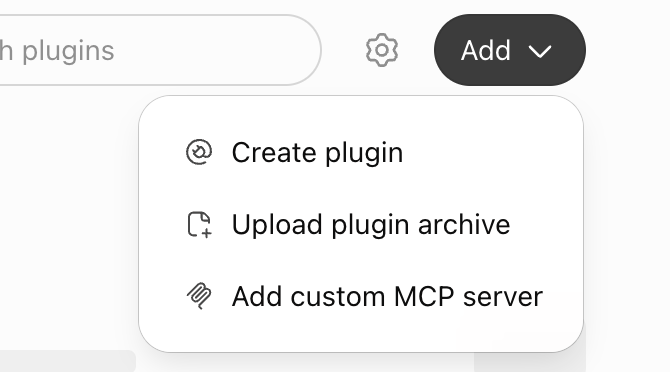
3. Fill in the form
- Name is what you pick from the list when you type @ in a chat, such as "qbash". Description is optional.
- Connection stays on Server URL. Paste the qbash URL.
- Authentication depends on the server. qbash uses OAuth, and ChatGPT reads its sign-in details from the server, so Advanced OAuth settings can stay as they are. Another MCP server might use a different method. Check its own docs.
- Tick I understand and want to continue, then choose Create as a plugin.
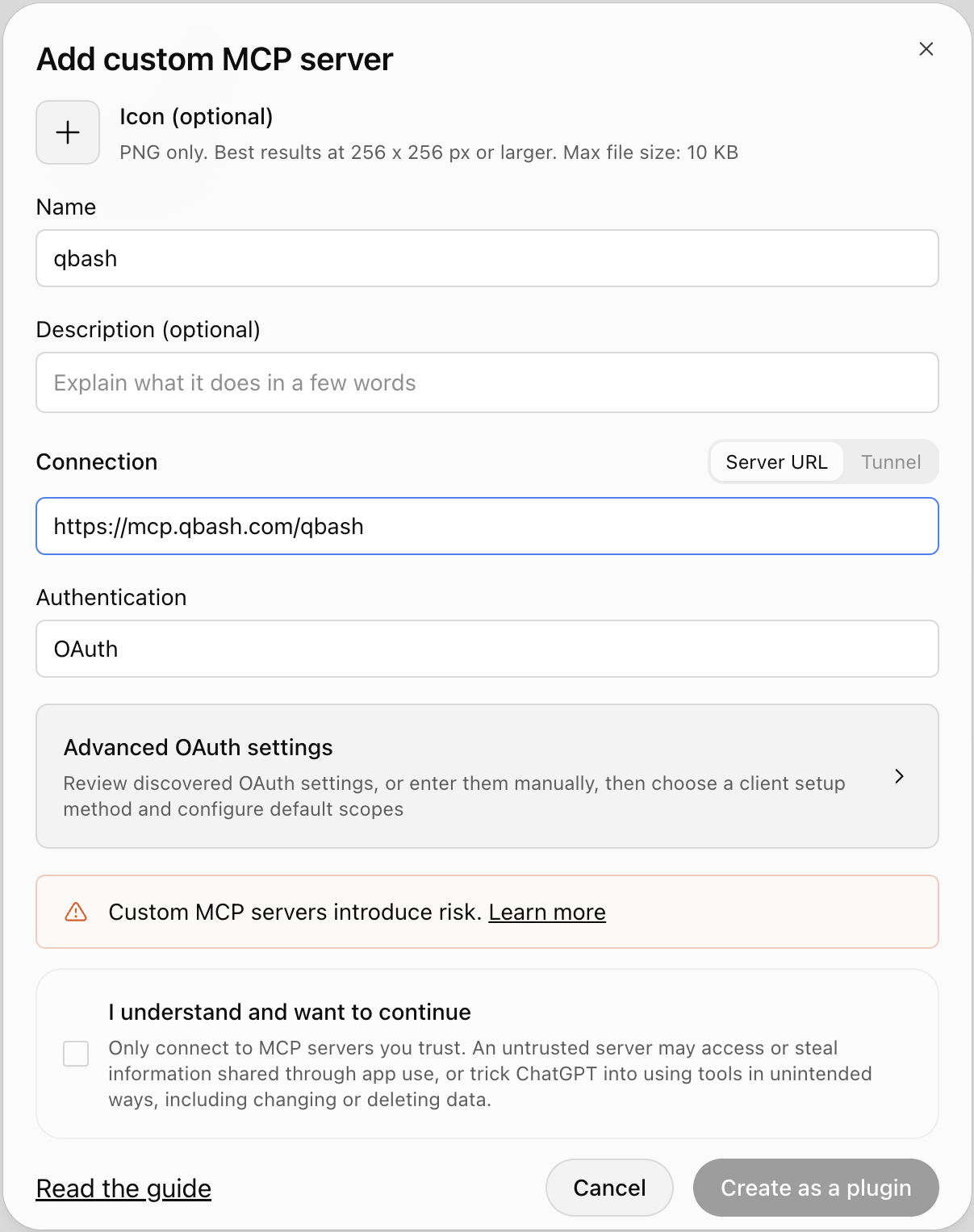
The URL in this screenshot belongs to a custom qbash server. For the official server, paste https://mcp.qbash.com/mcp.
4. Install the plugin
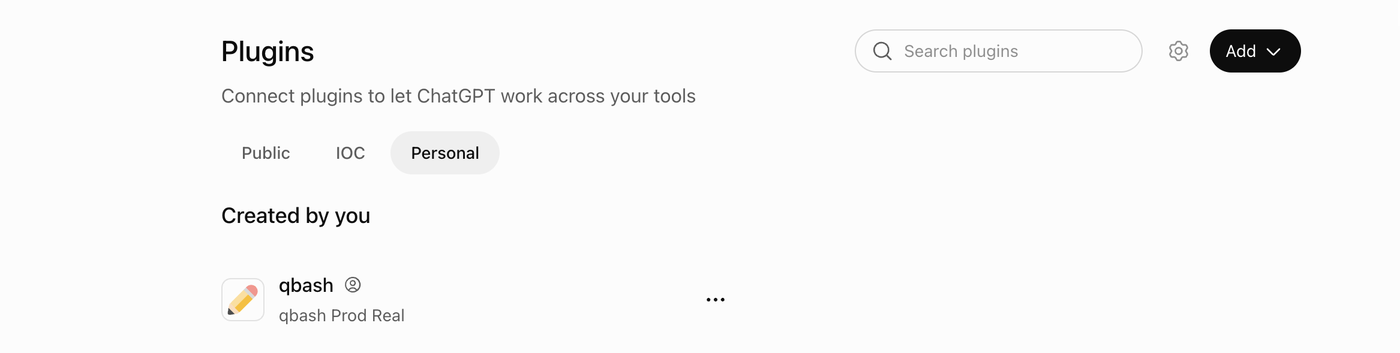
The new plugin is listed on the Personal tab under Created by you. ChatGPT can't use it until you open it there and install it.
Installing opens a connect screen with ChatGPT's notes on permissions and data use. Choose the Continue to button, which carries your plugin's name.
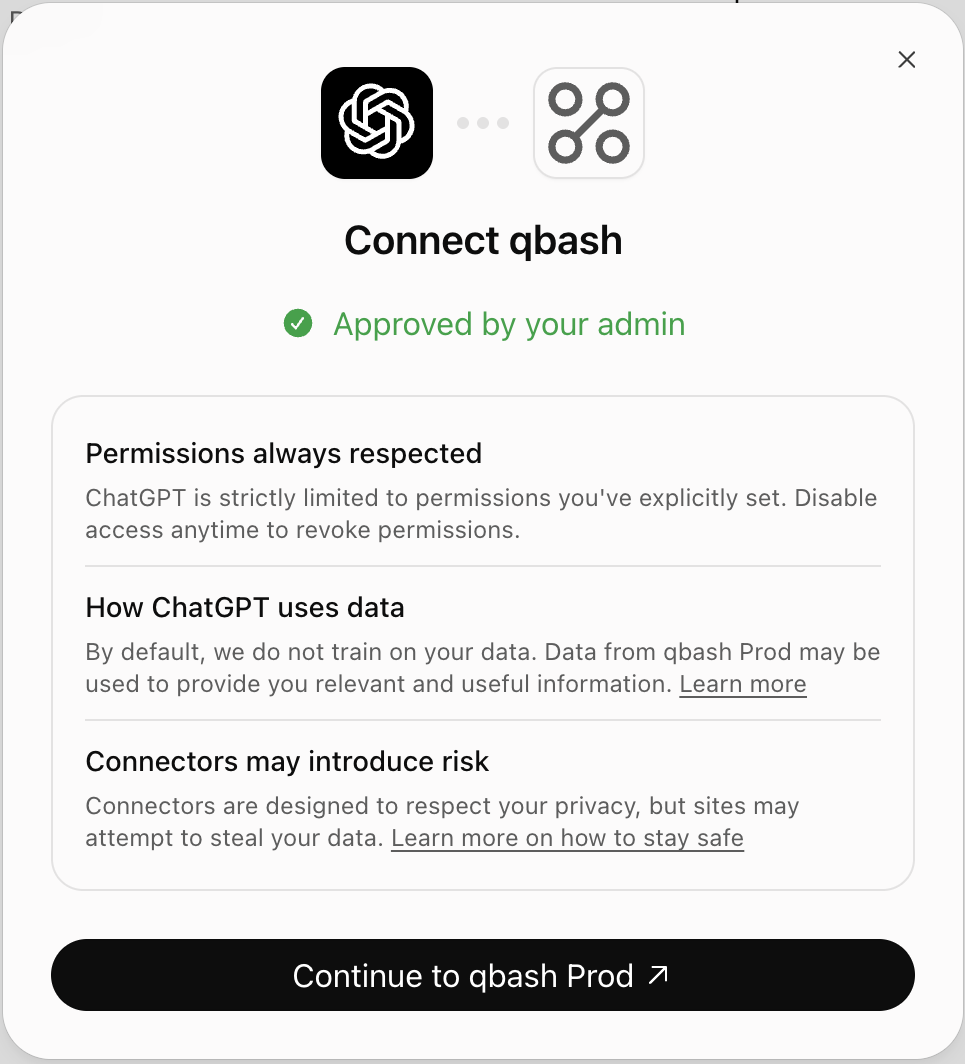
5. Sign in to qbash
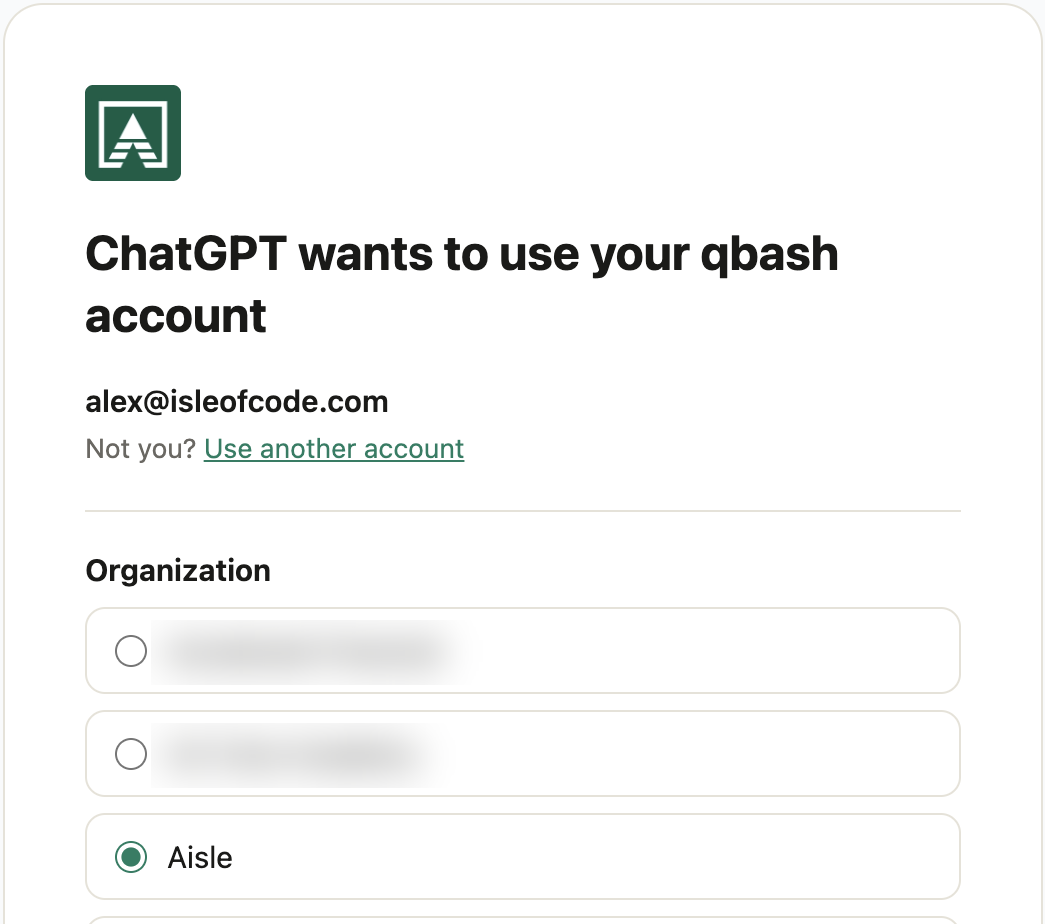
If you're adding qbash, it opens in your browser to sign in. Pick the qbash organization ChatGPT should use. Other servers have their own sign-in.
6. Use it in a chat
Start a new chat, type @ and pick the plugin by its name. Ask for what you want done, and approve each write action when ChatGPT asks.
Share qbash or another MCP plugin with your whole workspace
Plugins are private to you by default and aren't shared with the workspace. Workspace admins, and people whose role has the Share plugins or Publish plugins to workspace permission, can share a plugin with named people or publish it to the workspace tab for the whole team.
Once it's published, an admin chooses how it reaches people under Plugins in the Admin console. Available for installation lets each person install it, Installed for workspace installs it for everyone, and Customize by role limits it to chosen roles. Business workspaces don't have that last option.
Every person still signs in to qbash with their own account when they first use it, so each one works under their own qbash permissions. OpenAI's plugins guide covers sharing, and plugin controls covers the admin settings.
Refresh the tool list
ChatGPT keeps a copy of the tools it read from the server, and that copy can fall out of sync, for example after qbash adds a tool or you change what a custom server shares. Open the plugin's details page, refresh it, and start a new conversation. A conversation that was already open can keep the old list. On a workspace plugin, the admin's New tools setting decides whether new tools are allowed.
Troubleshooting
- No Add custom MCP server option. Your workspace role doesn't allow it. Talk to your workspace owner, who can add the server and publish it, or on Enterprise and Edu give your role Create plugins with MCPs.
- The plugin doesn't appear when you type @. Check that it is installed, not only created.
- ChatGPT signs in to the wrong qbash organization. Uninstall the plugin, install it again, and pick the right organization on the qbash sign-in page.